Describe it. Watch it get built.
A local, open-source IDE powered by AI. Type what you want, the agent writes the code, the preview updates live.
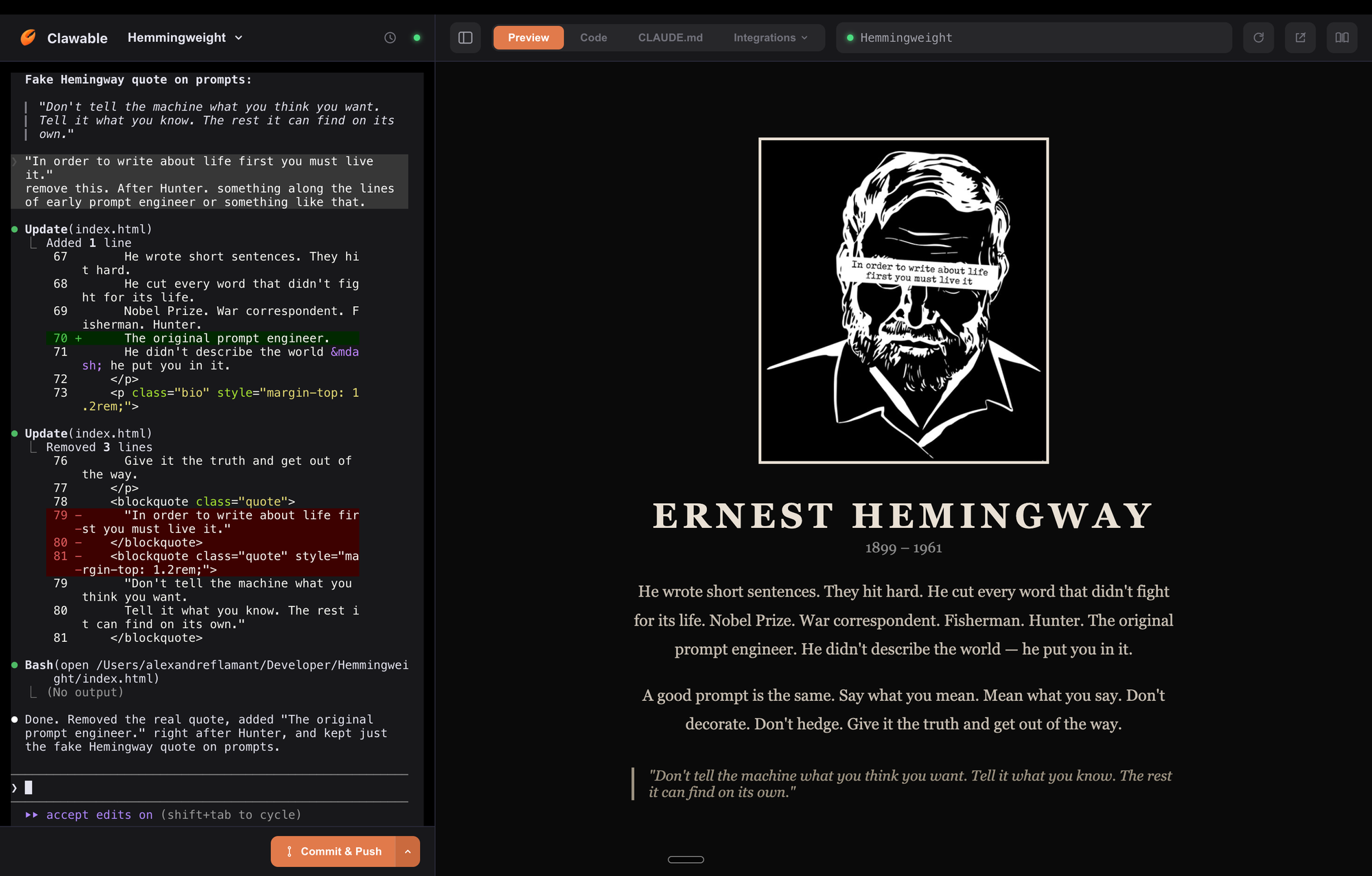
From idea to running site
Four pieces, one loop. You describe, the agent builds, the preview updates, errors fix themselves.
Describe it. Build it.
Type what you want in plain English. The agent writes production-ready code, iterates on it, and stays out of your way.
See every change in real time.
Your site renders as it's built. Components appear in the preview pane the moment they're written. No refresh, no waiting.
Connect to everything. Instantly.
GitHub, Supabase, Vercel, Netlify — wire up services in one click. No config files, no environment juggling.
Bugs fix themselves.
Hemingweight watches your browser console and dev-server logs. When an error appears, the agent diagnoses it and pushes a fix.
Works with what you already use
Hemingweight comes preloaded with the modern web stack and the services you'd reach for anyway.
1-click integrations
Preloaded frameworks & tools
Three steps, about two minutes
Everything is open source and runs on your machine. You only do this once.
Pick your model
Hemingweight is bring-your-own-model. Pick whichever you already have or want to sign up for. You can add more later.
Install the CLI if you haven't already (the main installer in step 2 does this for you, so skip if you've never used Claude Code before):
Install the Mistral vibe CLI:
Install the OpenAI codex CLI:
Install the Google gemini CLI:
Install Hemingweight
On macOS, press Cmd + Space, type Terminal, hit Enter. Then paste this and hit Enter:
About two minutes. You'll be asked for your Mac password once, for trusting the local HTTPS certificate. Nothing leaves your laptop. The installer puts Node, Python, Git, Hemingweight, and the Claude Code CLI in place.
Already have Hemingweight? Running this same command updates it. Future updates then happen in-app with one click.
Refresh this page, then click Launch
The status indicator at the top will flip from red to green as soon as your local server is reachable. Click Launch Hemingweight, pick your model on first open, paste your API key (or sign in), and you're in.
On the very first launch, your browser may ask whether this page is allowed to talk to your local network. Click Allow. If you miss the prompt or click Block by mistake, here's how to fix it.
How it works
Hemingweight is a small Node.js server that runs on your Mac. It serves a React-based UI and spawns whichever AI coding CLI you've configured (Claude Code, Mistral's vibe, OpenAI's codex) in a real terminal via a Python PTY bridge. When you describe what you want built, the agent reads and writes files in your projects folder, runs your dev server, and hands you a live preview.
This page is a thin entry point. It detects the local server over HTTPS on port 3457 (or HTTP on 3456 for legacy setups), and hands you off. Nothing about your session, your code, or your prompts ever touches our servers. The AI CLI talks to its provider (Anthropic, Mistral, OpenAI) using your own key or subscription, the same way the CLI does on the command line.
All the code is on GitHub. Issues, pull requests, and model integrations welcome.
Frequently asked
The questions people send us most. Missing one? Ask on GitHub.
What is Hemingweight?
Do I need to know how to code?
How much does it cost?
What can I build with it?
Where are my files saved?
~/Developer on your own machine, as plain files inside a git repo. Nothing is uploaded. Your code only leaves your laptop if you push to GitHub, or when the AI CLI talks to its provider using your own key.Which AI models work?
vibe CLI), OpenAI (via codex), and Gemini (via the gemini CLI). You bring your own account or API key. Switch model per-project, or even mid-conversation.Is it Mac only?
Why does my browser ask about "local network access"?
localhost:3457. Chromium-based browsers now ask permission before any website (including this one) is allowed to talk to it. Click Allow on the first prompt. If you missed it, see the Troubleshooting section.How is this different from Cursor, v0, or Bolt?
If something goes wrong Troubleshooting ▼
Common snags and how to get past them.
My browser blocked the connection to localhost
The first time this page tries to reach your local machine, Chromium-based browsers show an "access local network" prompt. If you clicked Block, the choice is remembered and the browser will not ask again. You need to reset the permission for this site.
Easiest fix (works on Chrome, Brave, Arc, Edge):
- Paste this URL into your browser's address bar and press Enter:
- Click the Reset permissions button at the top of the page that opens
- Come back here and reload. When the prompt reappears, click Allow.
Manual alternative: click the tune icon on the left of the address bar, open Site settings, find Local network (Brave) or Private network access (Chrome), and set it to Allow. Reset is faster.
Safari and Firefox don't enforce this yet, so this step doesn't apply there.
The install command failed
The first red line in the Terminal output usually names the culprit. The most common ones:
- Missing Xcode Command Line Tools. Run xcode-select --install, wait for it to finish, then re-run the install command.
- Homebrew not installed. The installer puts it in place for you, but if that step fails, install Homebrew manually from brew.sh and re-run.
- Permission denied. Make sure you're pasting the command into Terminal as yourself, not under sudo.
Still stuck? Open a GitHub issue with the last 20 lines of your Terminal output.
Status stays red even after install finished
The server may not have started. Open Terminal and run:
Then refresh this page. If that doesn't help, check the server log for errors:
Update Hemingweight to the latest version
If you're on a version older than 1.6.0 you won't see the in-app Update button yet. Run this one-liner once and you'll be on the latest, with auto-update working from then on:
Same command as the first install. If Hemingweight is already in ~/Developer/hemingweight, the installer detects it and runs git pull instead of a fresh clone. No data is touched.
Prefer to do it by hand?
Once you're on 1.6.0 or later, the app shows a small orange Update chip in its top toolbar whenever a new version lands. Click it, wait a few seconds, done.
I want to uninstall Hemingweight
Run these three commands in Terminal:
Line 1 stops the auto-starting server. Line 2 removes the local certificate authority from your keychain. Line 3 deletes the code and config. Your ~/Developer projects stay where they are.